Visual Studio “14” CTP now available

Some hours back , the Visual Studio “14” CTP was released. An early preview of the next version of Visual Studio. You can find the Visual Studio and .NET release announcements on Soma’s blog. You can find a complete list of new features in the Visual Studio “14” CTP knowledge base article.

This Visual Studio “14” CTP brings together several new technologies that we recently announced including:

  • The .NET Compiler Platform, also known as “Roslyn,” which includes the upcoming version of our managed compilers for C# and VB as well as an API that enables developers to integrate with the VS compiler and language service more easily than they can today. You can read more about the .NET Compiler Platform on the C# and VBteam blogs.
  • Updates to the Visual C++ Standard Library, added utility functions, manipulators, functions, and several bug fixes that will improve productivity. To learn more about all the changes visit the C++ team blog.
  • Tooling for ASP.NET vNext. ASP.NET vNext is a lean and composable .NET stack for building modern web applications for both cloud and on premises servers. For more information about ASP.NET vNext go to ASP.NET vNext website and check out the ASP.NET team blog.

CTPs provide early adopters with an opportunity to try out the new and improved product features, and the ability to share feedback with the product team.

Please report bugs using Connect and share your suggestions through Send-a-Smile from within the IDE or on our UserVoice site.

Note, Visual Studio side by side support is not available on this early build. Do not install this CTP on a machine with any other version of Visual Studio installed.

What is exactly One ASP.NET?

There was a common question from all the corners, as a .NET developer what  would be the project template  that you are going to use for your web application. The answer would simply WebForms if the question was raised prior to the introduction of ASP.NET MVC.

Since the release of the ASP.NET MVC Framework in 2009, the developers had a major choice to make when starting up a new project: Web Forms or MVC?

What if I want to use both? What if a third choice comes along like Web API, SignalR ?

Microsoft has finally brought these components all together, and the result is One ASP.NET.

ASP.NET MVC Web Forms Web API Signal R all together

One ASP.NET

One ASP.NET helps in Unified Dialog and made the web app to use Web Forms , Web API, MVC together, and also came with some cool Scaffolding features etc.

Starting with Visual Studio 2013,  there is now only one web project type in Visual Studio.

One ASP.NET Project TypeWhen you choose this project type to start with, you will be propmpted with additional configuration options begin working with your project.

One ASP.NET - New Project

If you look closely, you’ll see a new set of check-boxes which will allow you to include the folders and core references for other technologies outside of the major one that you selected.

Choose Reference Items - One ASP.NET


As per your project template and checkbox selection all the necessary configuration and directories will be done for you automatically. Now when you attempt to add a new item to your project, the options lists just about everything you could think of.

One ASP.NET Add New Item

You might be interested in video “Introducing One ASP.NET” by Scott Hunter.


ASP.NET MVC Release History, Supported Visual Studio versions and .NET Framework

ASP.NET MVC is a web application development framework built on top of Microsoft’s .NET Framework. ASP.NET MVC framework is a lightweight, highly testable presentation framework that is integrated with existing ASP.NET features.

Here I’m listing down the ASP.NET MVC versions and its release dates,

ASP.NET MVC version history , release dates, supported visual studio and .net frameworks

Let us see the stable ASP.NET MVC versions and its supported Visual Studio versions ( and .NET Frameworks ) together,

ASP.NET MVC 1 – Visual Studio 2008 and Visual Studio 2008 Service Pack 1 (.NET Framework 3.5)

ASP.NET MVC 2 – Visual Studio 2008 and 2010 (.NET Framework 3.5, 4.0)

ASP.NET MVC 3 – Visual Studio 2010 (.NET Framework 4.0)

ASP.NET MVC 4 – Visual Studio 2010 Service Pack 1 and Visual Studio 2012 (.NET Framework 4.0, 4.5)

ASP.NETMVC 5 – Visual Studio 2013 (.NET Framework 4.5, 4.5.1)

Integrated Color Picker for Visual Studio IDE.

Integrated Color Picker for Visual Studio Integrated Color Picker for Visual Studio IDE.

This tool will very useful if you are working as a Web Developer or UI designer, who mainly uses Visual Studio for the day to day assignments.

This tool offers the below options,

  • Color Selection from Color Canvas.
  • Color Selection from Available Colors.
  • Color Selection from Standard Colors.
  • Color Selection from Saved Colors.
  • Color Selection using Eyedropper.

Integrated Color Picker for Visual Studio

Read more from Color Picker Page

The Solution User Options (.Suo) File in Visual Studio

What is Solution User Options (.suo) file

The solution user options (.suo) file is a structured storage, or compound, file stored in a binary format. This file is used to store user preference settings, and is created automatically when Visual Studio saves a solution.

Location of .suo file

The .suo file will be saved in the folder where your Solution (.sln) file exists. You might wanted to set true for “Show Hidden Files and Folder” in “Folder Options” as .suo file is default by hidden.

What informations are saved in my .suo file

This file is used by Visual Studio to store user/solution specific information such as Opened Files, Expanded Nodes in the Solution Visual Studio .suo fileExplorer, Opened Tool Windows and its Positions, User Tasks, Breakpoints, Start-up Project, Contents of Watch window, Whether the project is loaded/unloaded  etc. The same file is used by Visual Studio Addins (VSPackages) to persist information that are specific to that solution/user.

.suo file and Source Control

Adding user specific information to source control is not a good idea. Most of the code versioning control ignores .suo file by default. If included, the developer, who checks out the latest .suo file, will loose all his personal settings which is stored in the local .suo file.

Visual Studio performance and .suo file

If the size of .suo file is too large then it can affect the performance of Visual Studio. Deleting the .suo file will boost the performance.

Deleting .suo file

Visual Studio creates a new file with the .suo file extension as soon as you open again the solution. But once the file with the .suo file extension is deleted, any of your existing solution user-specific settings will be lost.

Web Search is now updated to show Quick Search Box

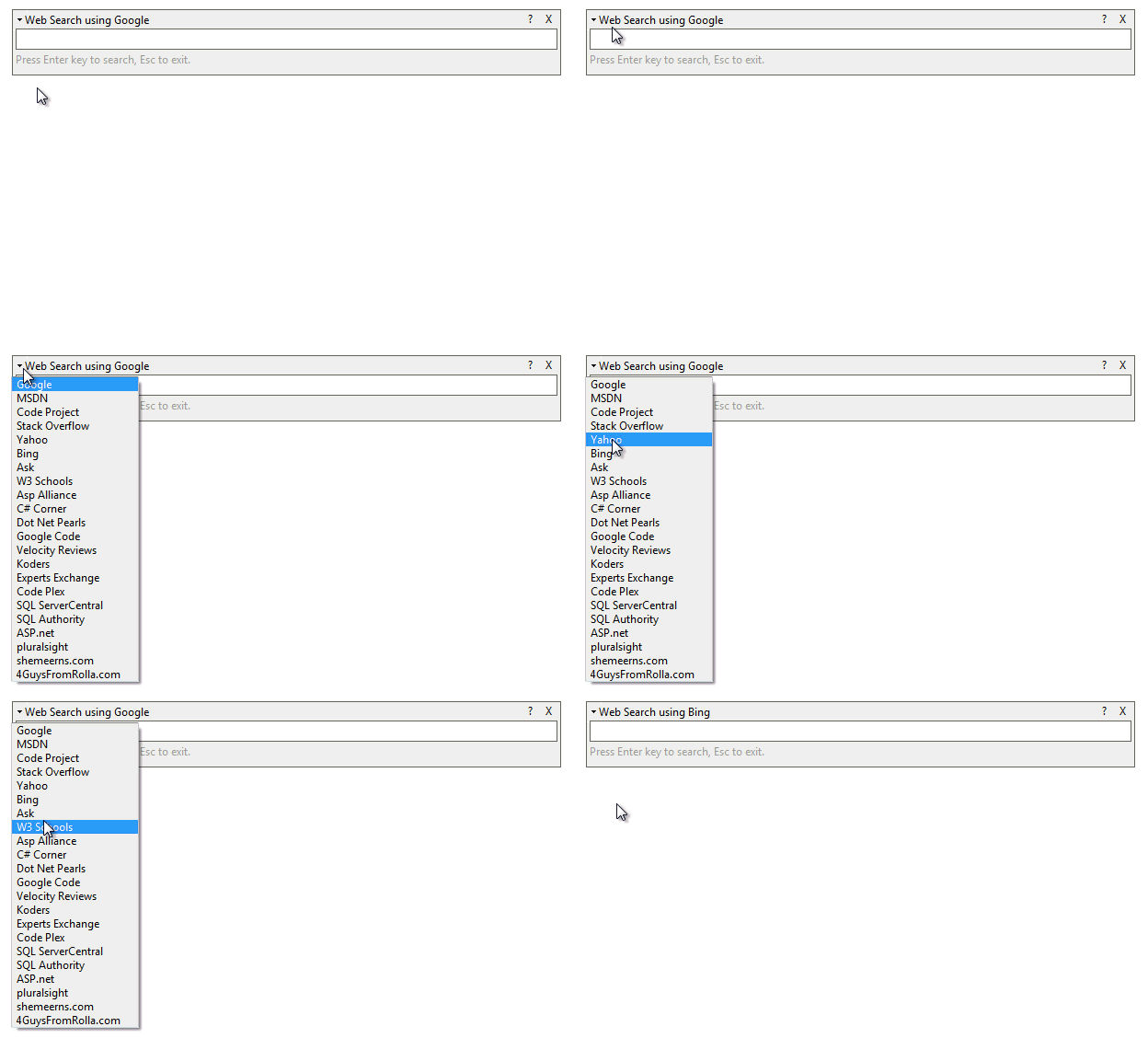
QuickSearchWeb Search is now updated to show Quick Search Box in Visuak Sudio IDE.

and also updated to list asp.net (suggested by Jon Galloway) and pluralsight in the default search list.

Using this Quick Search Box you can easily start searching for anything, from the listed WebSites (including custom). This Quick Search will help those who are frequently searched somthing.

Click here to read or download

The below screen shows the configuration screen of Web Search.

Web Search Config Option

Below screen is how the Web Search plugin looks like,

Search from Visual Studio IDE

Using the DebuggerBrowsable Attribute

Visual Studio is very rich with debugging tools and we always use debug windows for troubleshooting issues.

Debug windows gives  us the access to view values of objects and option to edit the same. Lets say I’m working with an object, which is having large number of members in it. Now when I debug I required only few of them and the other member object values are not that much important for me. In this case I will be facing some difficulties to see the required member object in in the debug hierarchy. Which indirectly wasting my time.

To help us in this kind of situation .NET already have Diagnostic Debugger Attributes. In this post we will check the usability of DebuggerBrowsableAttribute.

DebuggerBrowsable Attribute determines if and how a member is displayed in the debugger variable windows. You can add the DebuggerBrowsable attribute to properties, fields and indexers in classes and structures.The constructor for this attribute takes one of the DebuggerBrowsableState enumeration values, which specifies one of the following states:

  • Never indicates that the member is not displayed in the data window. For example, using this value for the DebuggerBrowsableAttribute on a field removes the field from the hierarchy; the field is not displayed when you expand the enclosing type by clicking the plus sign (+) for the type instance.
  • Collapsed indicates that the member is displayed but not expanded by default. This is the default behavior.
  • RootHidden indicates that the member itself is not shown, but its constituent objects are displayed if it is an array or collection.

Let us understand more with a sample example,

The blow code block is used to understand different DebuggerBrowsableState of DebuggerBrowsableAttribute,

[code language=”csharp”]
static void Main(string[] args)
{
List employers = new List();
employers.Add(new Employee
{
Id = 1,
Name = new FullName("Dave", "A"),
Phone = new List() { "732-751-2921", "732-751-2923" },
UniqueNumber = System.Guid.NewGuid().ToString()
});
employers.Add(new Employee
{
Id = 2,
Name = new FullName("Aydin", "B"),
Phone = new List() { "732-752-2922", "732-752-2924" },
UniqueNumber = System.Guid.NewGuid().ToString()
});
employers.Add(new Employee
{
Id = 3,
Name = new FullName("John", "C"),
Phone = new List() { "732-753-2923", "732-752-2932" },
UniqueNumber = System.Guid.NewGuid().ToString()
});
employers.Add(new Employee
{
Id = 4,
Name = new FullName("Peter", "D"),
Phone = new List() { "732-754-2924", "732-752-3922" },
UniqueNumber = System.Guid.NewGuid().ToString()
});
}
[/code]

Now let me show you the class definition,

[code language=”csharp”]

class Employee
{
public int Id { get; set; }

[DebuggerBrowsable(DebuggerBrowsableState.RootHidden)]
public FullName Name { get; set; }

[DebuggerBrowsable(DebuggerBrowsableState.Collapsed)]
public List Phone { get; set; }

public string UniqueNumber { get; set; }

[DebuggerBrowsable(DebuggerBrowsableState.Never)]
public string Email { get; set; }

[DebuggerBrowsable(DebuggerBrowsableState.Never)]
public string Fax { get; set; }

[DebuggerBrowsable(DebuggerBrowsableState.Never)]
public int Age { get; set; }
}

public class FullName
{
public FullName(string firstName, string lastName)
{
FirstName = firstName;
LastName = lastName;
}
public string FirstName { get; set; }
public string LastName { get; set; }
}

[/code]

If you observe the above code you can see that I have decorated properties with DebuggerBrowsable attribute and desired DebuggerBrowsableState. In debug mode, you can check the Employees object to see the effect of this DebuggerBrowsableAttribute.

Below given screen shot shows the debug view of Employee object.Without DebuggerBrowsableAttribute Quick Watch
In the above screenshot we can see that Age, Email, Fax are not listed and FirstName, LastName are shown without root element. Below screenshot shows the Quick watch of employee object without the DebuggerBrowsableAttribute.


DebuggerBrowsableAttribute Quick Watch

Visual Studio 2013 Update 1 Now Available

VS_Purp256_rgb-1[1]Microsoft released Visual Studio 2013 Update 1 on January 20, 2014. Visual Studio 2013 updates are cumulative releases that include the new features and fixes, this update fixed various issues.

For information about the latest update, see Visual Studio Updates and the Visual Studio Update KB article.

How to install Visual Studio 2013 Update 1?

You can download Visual Studio 2013 Update 1 from the below mentioned Microsoft server links,

Note: Microsoft scanned this file for viruses and claims to be virus free.

In case if you have used Web Installer then the computer must be connected to the Internet while Installing.

If you want to create an offline installer from web installer of the update then, once the web installer download is complete, open a command prompt, navigate to the download location, and run VS2013.1.exe /layout. Then specify where to download the files and click the Download button. Once downloaded, you can run VS2013.1.exe from the download location to install the update.